Thursday, 26 April 2018

Computer Network Kya Hai? Jaane Puri Jankari

Computer Network Kya Hai

Jab 2 ya 2 se zyada computers kisi medium ki help se aapas mein connect kiye jaate hain, to use Computer Network kahte hain.

Har computer ka transmission sector different-different hota hai. Kuch network ka use ek limited area mein hi jaise 1km. tak hi ho sakta hai aur kuch network pure world ke computer ko data transfer ki facility provide kar sakte hain.

Computer network mein user na sirf apne computer ke resources ka use kar sakta hai, balki dusre computer aur computer ke devices, like –  Printer, Scanner, Hard Disc, CD Driver etc. ka bhi use kar sakta hai, chaahe wo kitni hi duri par kyon na ho. Ek computer network technique har scope se zyada useful hai.

Input Aur Output Devices Kya Hai


Advantages of Networking:


(i) Resource Sharing
(ii) Speedy Transmission of Data
(iii) Reliability

(i) Resource Sharing: User network ke kisi bhi computer se attached hue resource ka use network ke dusre computers par kaam karte hue kar sakta hai, e.g.- Agar kisi computer ke sath Lazer Printer attached hai, to network ke sabhi computers se us Printer par koi bhi document print kiya jaa sakta hai, isse hardware par hone waale expenses par bachat hoti hai.

(ii) Speedy Transmission of Data: Computers ke networking se 2 computers ke beech information ka transmission fastly aur safely hota hai. Ismein fast speed se kaam hota hai aur time ki bachat hoti hai.

(iii) Reliability: Networking mein kisi file ki 2 ya usse zyada copies alag-alag computers par store ki jaa sakti hain. Agar kisi wajah se ek computer kharab ya fail ho jaata hai, to wo data dusre computers se extract kiya jaa sakta hai. Is tarha network ke computers ek dusre ke liye backup ka kaam bhi kar sakte hain, jisse unki reliability badhti hai.

Types of Computer Network:


Information ka distribution, reliability aur trust etc. ki wajah se network ko three categories mein divide kiya jaata hai—

(i) Local Area Network (LAN)
(ii) Metropolitan Area Network (MAN)
(iii) Wide Area Network

(1) Local Area Network or LAN: 
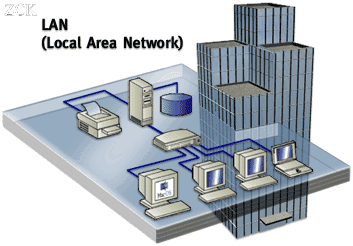


Computer Network

Aise network ke sabhi computers ek limited area mein hote hain. Ye area kam se kam kuch km. tak hota hai, e.g:- floor, building etc… LAN mein connect kiye gaye computers 2 ya usse zyada ho sakte hain. In computers ko kisi communication cable dwara aapas mein connect kiya jaata hai, e.g:- Twisted Pair Cable, Coaxial Cable & Fiber Optic Cable.

Data Communication Kya Hai

Advantages: LAN ke kuch main advantages is prakaar hain—

(1) Ye humein costly devices like — Laser Printer, zyada capacity aur speed waali storage devices ke use ki facility provide karte hain.

(2) Ye ek organization mein kaam karne waale employees ke beech zaruri informations ko quickly aur easily transmit karne ki facility provide karta hai.

(3) Is network se user ko sabhi computers par alag-alag application software aur operating system nahi lagane padte hain aur network ke use se time and place dono ki bachat hoti hai.

Disadvantages: LAN ke disadvantages is prakaar hain—

(1) Ye network se attached computers aur unke operations ki difficulties ko badhata hai.

(2) LAN topology ke kuch prakaaro mein ek computer ke fail hone par, saara network fail ho jaata hai.

(2) Metropolitan Area Network or LAN: 


Computer Network

Ye size mein LAN se bada hota hai aur ye kayi saare LAN ke combination se banta hai. MAN ki help se hum ek city mein ek network establish kar sakte hain. Kisi bhi city mein Coaxial Cable ke through Cable T.V. (Television) ki broadcasting MAN ka hi example hai. Is network ko establish karna, LAN ke comparison mein costly hota hai, kyonki iska geographical area LAN se zyada hota hai.

Advantages: MAN ke main advantages kuch is prakaar hain—

(i) Ye ek broad area ke network ke liye useful hai, e.g:- Meruth to Delhi

(ii) Is network mein LAN network ke comparison mein zyada computer connect kiye jaa sakte hain.

Disadvantages: MAN ke main disadvantages is prakaar hain—

(i) MAN mein data transmission ki speed LAN se kam hoti hai.

(ii) MAN ki maintenance bahot costly hoti hai.

(3) Wide Area Network or WAN: 


Computer Network

WAN ek bahot bade size ka data network hota hai. Ye bahot saare LAN or MAN ke combination se banta hai. Ismein data transmission speed LAN ke comparison mein slow hoti hai. WAN se connected computers aur devices ek dusre se hazaron km. ki distance mein bhi ho sakte hain. WAN ek aisa network hai, jo pure world mein phaila hua hai. Is network ko Fibre Optic Cable ya wireless technologies ke through establish kiya jaata hai.

Advantages: WAN ke main advantages is prakaar hain—

(i) WAN network ka broadcast pure world mein hai.

(ii) Ye information ke transmission ko easy bana deta hai.

Disadvantages: WAN ke main disadvantages is prakaar hain—

(i) Size mein bada hone ki wajah se ismein data transmission ki speed slow hoti hai.

(ii) WAN network establish karna aur uski maintenance karna bahot costly hota hai.

(iii) WAN network par complete data security nahi hai.


Mujhe ummeed hai doston Computer Network in hindi ki ye post apko pasand ayi hogi, aagey bhi main isi tarha ki information apke liye share karti rahungi. Agar apko meri ye post pasand ayi ho to please like and subscribe karein aur koi bhi information apko  chahiye computer se related to aap mujhe comment kar sakte hain, main puri koshish karungi apki help karne ki…..Thanks!

Data Communication Kya Hai?

Data Communication Kya Hai

Communication means 2 ya 2 se zyada logon ke beech information ya data ko send aur receive karke aapas mein relation banana hota hai.

Computer communication means computers ke beech aapas mein relation create karna hota hai, jisse computer ke medium se data ek place se dusre place par easily aur quickly send kiya jaa sakta hai, lekin iske liye computer mein Internet se computer ka connect hone zaruri hai, jisse ki Data Dommunication easily aur quickly ho.

Is prakaar hum ye kah sakte hain ki ek computer se dusre computer ya ek person se dusre person ke beech data ya information ke sending aur receiving method ko communication kahte hain.
Communication basically 2 types se hota hai—

(i) Person to Person
(ii) Mass Communication

(i) Person to Person: 


Person to Person Communication

Is type ke communication mein 2 ya 2 se zyada person ke through aapas mein directly information ko send ya receive kiya jaata hai.

(ii) Mass Communication: 


Mass Communication

Is type ke communication mein persons ke group ko kisi special person ke through information se represent karaya jaata hai. Is communication ka use Internet aur News Channels mein zyada hota hai, jisse informations dusre logon mein pahunchayi jaati hai.

Method of Communication:


Communication process mein jin methods ka use hota hai, unhe Communication System kahte hain. Kisi bhi communication system ke basically three components hote hain—

Method of Communication
(i) Sender
(ii) Medium
(iii) Receiver

(i) Sender: Sender wo person ya machine hota hai, jo kisi information ya data ko electronic signals ya electromagnetic waves mein change karke kisi medium se receiver tak send karta hai.

(ii) Medium: Medium wo method ya channel hota hai, jismein hokar electronic signal ya electromagnetic waves sender se receiver tak jaati hai.

(iii) Receiver: Receiver wo person ya machine hota hai, jo sender ke dwara send kiye gaye signals ko receive karke main message ya information mein change karta hai.

Kinds of Communication:


Kinds of Communication

(i) Oral Communication: Is type ke communication mein informations ko oral form mein send ya receive kiya jaata hai, e.g:- Face to face communication, Telephone par communication, Intercom ke through communication, Mobile phone ke through communication etc.

(ii) Written Communication: Is type ki communication mein informations ko written form mein ek place se dusre place tak pahunchaya jaa sakta hai, e.g:- Letter ke through, Fax ke through, Pager ke through, Email ke through, SMS ke through etc.

Communication Modes:


Data ke flow ya communication ke direction ke anusaar three types ke communication modes ya transmission method use kiye jaate hain—

Communication Modes

(i) Simplex Mode
(ii) Half Duplex Mode
(iii) Full Duplex Mode

(i) Simplex Mode: Ismein data ya information ka transmission sirf ek hi direction mein hota hai. T.V. (Television), Radio etc. simplex mode ke hi example hain.

(ii) Half Duplex Mode: Half Duplex Mode mein data ya information ka transmission dono direction mein ho sakta hai, bas ismein main rule ye hota hai, ki ek time mein sirf ek hi direction mein data transmit hoga. Walkie-talkie half duplex mode ka ek example hai.

(iii) Full Duplex Mode: Data communication system mein full duplex mode sabse zyada successful, useful aur reliable hai, kyonki ismein data ya information ka transmission both direction mein ho sakta hai. Ismein ek hi time mein ek hi computer dusre computer ke liye transmitter aur receiver dono ho sakta hai. Telephone, Mobile, Video, Chat etc. full duplex mode ke important example hain.

Iske use se sabse bada benefit ye hai, ki ismein koi bhi transmission successfully hota hai aur ismein error aane ki possibility bhi na ke barabar hoti hai.

Computer Network Kya Hai

Mujhe ummeed hai doston Communication in hindi ki ye post apko pasand ayi hogi, aagey bhi main isi tarha ki information apke liye share karti rahungi. Agar apko meri ye post pasand ayi ho to please like and subscribe karein aur koi bhi information apko  chahiye computer se related to aap mujhe comment kar sakte hain, main puri koshish karungi apki help karne ki…..Thanks!

MS Word Me Formatting Kya Hai?

Formatting Kya Hai

Formatting Kya Hai? :


MS-Word mein Formatting ek aisa useful feature hai, jiska use hum text ke appearance ko change karne ke liye karte hain. Kisi bhi text ki formatting karke user use professional look de sakta hai. MS-Word mein user 3 type se formatting kar sakta hai—

(1) Character Formatting
(2) Paragraph Formatting
(3) Page Formatting

Microsoft Word Kya Hai  


(1) Character Formatting:


MS-Word package mein bahot saare letters, numbers, punctuation marks, symbols hote hain, jinki formatting user is tarha se kar sakta hai—
(i) Font ko change karna, Font size dena, Font ki style change karna, Font effect dena aur font color change karna.
(ii) Character ke beech space dena
(iii) Text par effect apply karna
(iv) Change Case ka use karke text ko Sentence Case, Upper, Lower, Toggle & Capitalize Each Word mein change kar sakte hain.

(2) Paragraph Formatting:


Paragraph formatting mein user pure document ke look ko change karke use ek professional look de sakta hai. Paragraph formatting ko basically three categories mein divide kiya jaa sakta hai—

(i) Change Paragraph Alignment
(ii) Indent Paragraphs
(iii) Add Borders & Shading
(iv) Change Spacing between Paragraph & Lines

(i) Change Paragraph Alignment: MS-Word ke Home tab mein Paragraph Alignment ek aisa option hai, jiska use karke user text ko kisi bhi side mein set kar sakta hai; like – Align Left, Align Right, Center & Justify.

(ii) Indent Paragraphs: MS-Word mein Indent Paragraph ek aisa feature hai, jiska use karke user paragraph ki line mein space increase karta hai. Iske use se user paragraph mein ek different type ki margin set kar sakta hai. Paragraph mein user different type ke indent ko set kar sakta hai, jo is prakaar hain—

·       First Line Indent
·       Hanging Indent
·       Left Indent
·       Right Indent

(iii) Add Borders & Shading: Paragraph formatting mein user different type ke borders and shading ka use karke apne page ke paragraph ko professional look de sakta hai.

(iv) Change Spacing between Paragraph & Lines: Is feature ka use karke user paragraphs ya lines ke beech space de sakta hai. Ismein 2 options hote hain—Add Space & Remove Space. User apni zarurat ke anusaar iska use kar sakta hai, apne paragraphs aur lines ke beech space dene ya di hui space ko remove karne ke liye.

(3) Page Formatting:


MS-Word package mein page formatting ek aisa useful feature hai, jiska use user page ke appearance ko change karne ke liye aur page ko ek professional look dene ke liye karta hai. MS-Word mein page formatting karne ke liye kayi options hain, jinka use user apni zarurat ke anusaar karta hai—

(i) Modify Page Margins & Orientations
(ii) Apply Page Border & Color
(iii) Insert Header & Footer
(iv) Lists
(v) Adding Tables
(vi) Graphics etc.

(i) Modify Page Margins: Page margins wo blank space hoti hai, jo user page mein text likhne par top, bottom & left, right mein chodta hai. MS-Word mein page margins ke kayi options hain, jinka use user apni zarurat ke anusaar kar sakta hai--

Top: Top margin use kahte hain, jo user page ke top par blank space chhodta hai.

Bottom: Bottom margin means page ke bottom mein di jaane waali space hoti hai.

Left: Left margin page ke left side mein di jaati hai.

Right: Right margin page ke right side mein di jaane waali blank space hoti hai.

Gutter: Ye ek special type ki page margin hai, jiska use user tab karta hai, jab use page ko binding karana hota hai, yaani Gutter margin ka use user page mein binding ke liye extra space dene ke liye karta hai.

(ii) Apply Page Border & Color: MS-Word mein user different type ke page borders & colors bhi add kar sakta hai, jo page ko different look deta hai.

(iii) Insert Header & Footer: Ye ek bahot hi useful option hai, jiska use karke user apne page mein title, page number, date etc. add kar sakta hai. Header page ke top mein title ya kuch bhi dene ke liye use hota hai aur footer page ke bottom ke liye use hota hai. Header & Footer add karne ka sabse bada benefit ye hota hai, ki jo bhi title ya date wagaira user ek page par deta hai, wo automatically dusre pages mein bhi add ho jaati hain.

(iv) Lists: MS-Word mein lists ek aisa useful feature hai, jo user ko document mein numbers & bullets ko add karne ki facility provide karta hai.

(v) Adding Tables: MS-Word mein jitni chahe, utni tables user add kar sakta hai aur usmein rows and columns ko zarurat ke anusaar add aur delete bhi kar sakta hai.

(vi) Graphics: MS-Word package ka use karke user different type ke graphics bhi add kar sakta hai, like - special characters, symbols, pictures, illustrations, watermarks etc.

MS Word Me Mail Merge Kya Hai

Mujhe ummeed hai doston Formatting in hindi ki ye post apko pasand ayi hogi, aagey bhi main isi tarha ki information apke liye share karti rahungi. Agar apko meri ye post pasand ayi ho to please like and subscribe karein aur koi bhi information apko  chahiye computer se related to aap mujhe comment kar sakte hain, main puri koshish karungi apki help karne ki…..Thanks!

Tuesday, 24 April 2018

MS Word Me Mail Merge Kya Hai?


MS-Word application mein Mail Merge ek aisa useful option hai, jismein 2 alag-alag document ko ya unki information ko combined karke ek document create kiya jaata hai. e.g:- Agar kisi letter ko ek se zyada college ko send karna ho to is condition mein hum mail merge ka use karke ek hi letter ko different-different name se kayi jagah easily send kar sakte hain.

Mail Merge option Microsoft word ke tools menu mein milta hai, jise select karne ke baad stepwise instruction follow karke document create kiya jaata hai. Mail merge mein pahla document Main aur dusra document Source kahlata hai.


Mail Merge ka use letter, invitation, common notes etc. ko create karke, ek se zyada persons ko ek hi time par send karne ke liye kiya jaata hai. Apni isi quality ki wajah se mail merge bahot hi popular aur useful option hai.

Merging of Mail - Steps:


Mail Merge in hindi

MS-Word mein mail merge process is tarha se complete kiya jaata hai—

1. Sabse pahle letter ko type karte hain.

2. Letter ko save karte hain aur save kiya hua letter Main Document kahlata hai.

3. Tools menu mein Mail Merge option par click karte hain.

4. Create option select karte hain aur Create option select karne par different-different options show hote hain.

5. Inmein se Form letters option ko select karte hai aur Active Window option ko select karne se type kiya gaya letter main document ban jaata hai. Ab phir isi document ko hum different name se different-different colleges mein send karenge. Ab sabhi colleges ke data ko collect karne aur ek file mein save karne ke liye Get Data option par click karenge

6. Get Data par click karne se 4 other options open hote hain. New Data create karne ke liye Create Data Source par click karne ke baad different fields select karte hain, jinke base par data collect karne ke baad OK par click karte hain

7. Save option waale dialogue box mein ek name likhkar ise save karte hain

8. Edit Data Source par click karne ke baad data entry form mein sabhi colleges (ya apni zarurat ke anusaar koi bhi data) ka address likhte hain. Ab 2 alag-alag documents create ho chuke hain, jinko ab merge kiya jaa sakta hai.

9. Ab Insert Mail Merge Field par click karke jo bhi field humein document mein chahiye unhe Add kar denge. Field is tarha se add hoti hai—

<< First Name>> <<Last Name>>

Is process ko karte hi sabhi field automatically different-different available address ke sath add ho jaati hain.

10. Ab toolbar ke Merge button par click karte hain.

11. Last mein Records to be Merged option mein sahi number dekar Merge button par click karte hain.

Ab letter alag-alag names aur alag-alag address ke sath create ho jaata hai. Inhe hum print karke sabhi jagah send kar sakte hain.

MS Word Me Formatting Kya Hai

Mujhe ummeed hai doston Mail Merge in hindi ki ye post apko pasand ayi hogi, aagey bhi main isi tarha ki information apke liye share karti rahungi. Agar apko meri ye post pasand ayi ho to please like and subscribe karein aur koi bhi information apko  chahiye computer se related to aap mujhe comment kar sakte hain, main puri koshish karungi apki help karne ki…..Thanks!

Microsoft Word (MS-Word) Kya Hai?

Microsoft Word Kya Hai

Microsoft word kya hai aur ye kis tarha kaam karta hai, ye jaanne se pahle humein ye jaanna hoga ki word processing kya hai aur iska MS- Word mein kya kaam hai?

Word Processing:


Computer ki language mein word processing ek aisi technique hai, jo user ko typing, editing, formatting etc. karne ki facility provide karti hai. Word processing mein kiye jaane waale main kaam hain—Typing jo ki keyboard ke through ki jaati hai, editing karna, type kiye gaye text ko design karna aur zarurat padne par document ko paper par print karna etc. kaam kiye jaate hain.

Word processing mein Letter Typing, Document Creation, Table Formatting, Mail Merge aur Chart Adding jaise kaam easily kiye jaa sakte hain.

MS Word Me Mail Merge Kya Hai

Present time mein word processing ke bahot saare software market mein available hain, jinka use karke hum word processing kar sakte hain, like—Word Start, Word Perfect and Microsoft Word. Inmein se Word Start DOS based software hai, jabki MS-Word Window based software hai, jiska use pure world mein sabse zyada hota hai.

Microsoft Word:


MS-Word word processing ka sabse popular package hai jo ki pure world mein sabse zyada use kiya jaata hai. Microsoft Application Microsoft Company dwara banaya gaya software hai, jiske owner Bill Gates (William Henry Gates) hain.

Microsoft Application ke bahot saare version market mein available hain, jinka use user apni zarurat ke anusaar karta hai e.g:- Word 1998, 2000, 2002, 2003, 2007 and 2010.

Microsoft word ke through user kisi bhi document ko type karke, uski editing, formatiing karke uska printout hardcopy mein le sakta hai. Isliye MS-Word computer Application mein use kiye jaane waala user ke liye favourite program hai.

Features of MS-Word:


(1) Entering Text: Ye feature user ko keyboard ke through document mein text enter karane ki facility provide karta hai.

(2) Editing Text: Is feature ke dwara user document min enter kiye gaye text ki editing (changes) bhi kar sakta hai.

(3) Formatting Text: Formatiing means kisi text ke appearance ko change karna, use acha dikhana hota hai. Formatting feature ke dwara user easily apne text ka appearance change kar sakta hai. Text formatting ke andar user ye saare kaam kar sakta hai—

(1) Font
(2) Font Size
(3) Font Style
(4) Font Color
(5) Text Alignment
(6) Text Indenting
(7) Bullets and Numbering


(4) Formatting Page Style: Page formatting feature ke through user document ke page ka layout change kar sakta hai e.g:-

(i) Page ki left, right, top and bottom margin ko set karna

(ii) Line ke beech mein space dena

(iii) Paragraph ke beech space dena

(iv) Header & footer ko page mein insert karna

(v) Text ko multiple columns mein set karna

(vi) Page number insert karna.

(5) Saving and Retrieving: Is feature ka use karke user apne documents ko save kar sakta hai aur baad mein zarurat padne par ismein store data aur document ko retrieve bhi kar sakta hai.

(6) Printing Document: Ye feature user ko document print karne ki permission deta hai, ismein user apne document ki hardcopy le sakta hai.

(7) Importing Text and Graphics: Is feature ke through user kisi text ko ek document se dusre document mein le sakta hai.

(8) Searching and Replacing Text: Ye feature user ko kisi specific text ko search karke use replace karne ki facility provide karta hai.

(9) Checking Spelling and Grammar: Is feature ke through document mein aane waali wrong spelling aur grammatical mistakes ko check karke use correction kiya jaa sakta hai.

Elements of Microsoft Word Screen (Window):


(1) Microsoft Office Button: 


Microsoft Office Button

Microsoft office button ms-word screen ke sabse top par left side mein hota hai. Jab is button par user click karta hai to wahan par ek menu show karta hai, jismein Create new file, Open existing file, Save file, Print file etc. options hote hain.

(2) Quick Access Toolbar: 


Quick Access Toolbar

Quick Access Toolbar MS-Office button ke thik right side mein hota hai. Quick Access Toolbar mein user un commands ko rakh sakta hai, jiska use user ko bar bar karna padta hai.

(3) Title Bar: 


Title Bar

Document ke top par center mein Title bar hota hai, jo document ka title, yaani file name show karta hai.

(4) Ribbon: 


Ribbon

MS-Word screen par Ribbon aisa option hai, jo ms-word mein use hone waale commands ko display karta hai.

(5) Ruller: 


Ribbon

Ruller Ribbon ke thik neeche hota hai, iska use document mein page ke format ko change karne ke liye kiya jaata.

(6) Text Area: 


Text Area

Ruller ke thik neeche ek blank area hota hai, jo ki text area kahlata hai. Isi text area mein user text type karta hai. Is text area mein ek blink karti hui vertical line hoti hai, jo ki cursor kahlaati hai. Ye vertical line user ko ye batati hai ki text kaha par type hoga.

(7) Scroll Bars: 


Scroll Bars

MS-Word window mein 2 type ke scroll bars hote hain vertical and horizontal, inka use document ko upar se neeche, neeche se upar aur daaye se baaye, baaye se daayein move karane ke liye hota hai.

(8) Status Bar: 


Status Bar

Status bar MS-Word screen ke sabse neeche (bottom) hota hai. Ye document ki condition batata hai e.g:- Current page, document mein kitne pages hain, document mein kitne words hain etc.


Mujhe ummeed hai doston Microsoft Word in hindi ki ye post apko pasand ayi hogi, aagey bhi main isi tarha ki information apke liye share karti rahungi. Agar apko meri ye post pasand ayi ho to please like and subscribe karein aur koi bhi information apko  chahiye computer se related to aap mujhe comment kar sakte hain, main puri koshish karungi apki help karne ki…..Thanks!